Invoices, payments and Stripe card checkout
Share an invoice, record a payment you received, and connect your own Stripe account so clients can pay by card.
Set your invoice details
In Settings, set the Invoice tax rate (%) and your Payment instructions, which tell clients how to pay by bank transfer, check or another method. A tax rate change applies to new invoices only. All invoices are in US dollars.
Create and share the invoice
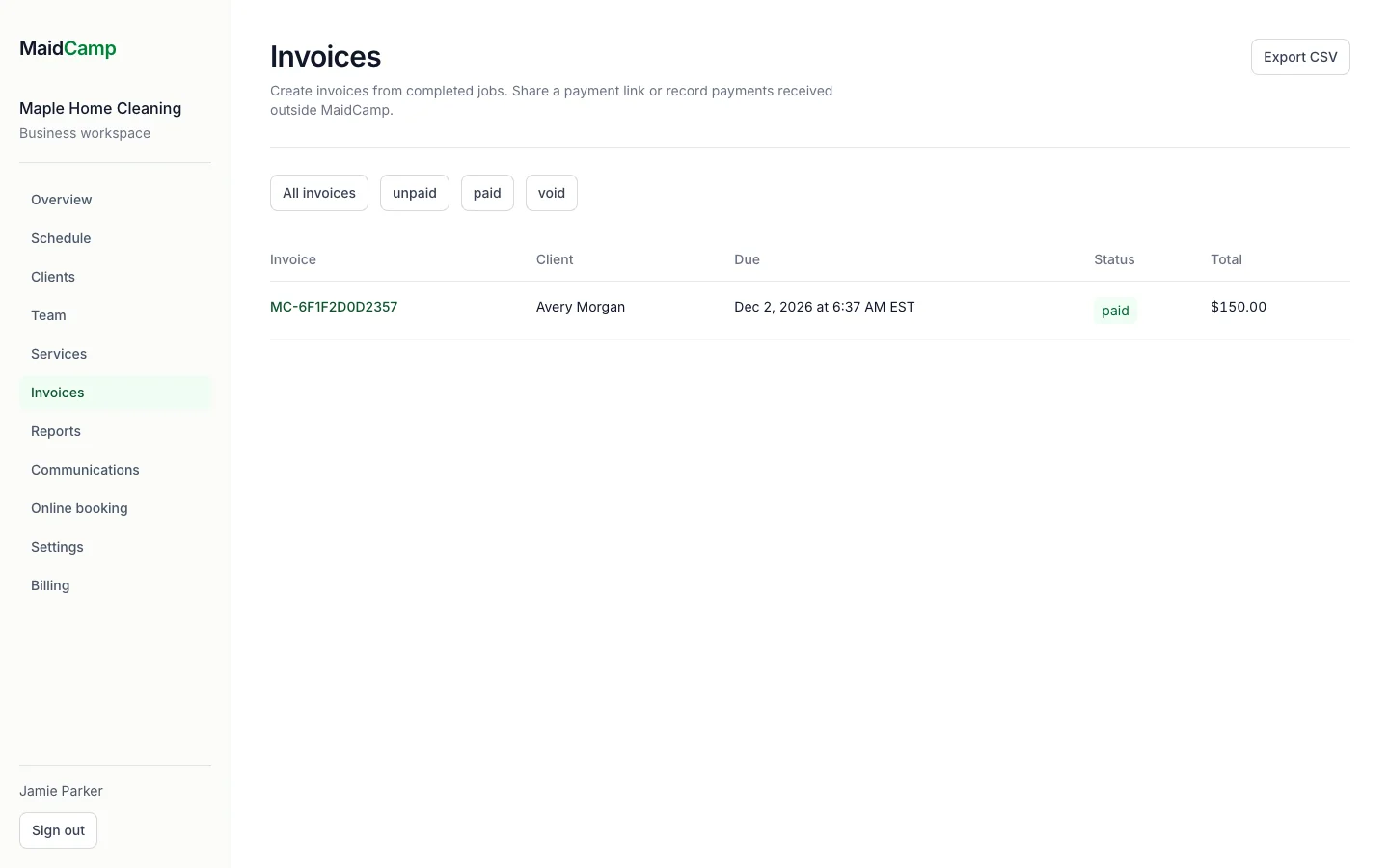
Open a completed job and select Create invoice. On the invoice, Share invoice gives you a private link; anyone with the link can view the invoice, so send it only to your client. You can also select Queue invoice email, or Print / save PDF to keep a copy. Queued emails are sent only after your account email is verified and the platform email service is running.
Record a payment you received
After the client pays the full amount outside MaidCamp, open the invoice and use Record an offline payment. Choose the payment method (Bank transfer, Cash, Check or Other), enter a reference or receipt note, and select Record received payment. Partial payments are not supported. If an invoice was issued in error, use Void invoice; it stays in your records and cannot be paid.
Check what card payments need
Card checkout needs three things: your account email verified (Settings, then Send verification email), an active trial or subscription, and merchant card payments enabled on the platform. If Billing shows that merchant card payments need to be enabled by the platform, keep using your payment instructions and offline payments.
Connect your Stripe account
Open Billing and find Accept client card payments. Choose your business registration country (United States, Canada, United Kingdom or Australia; it cannot be changed later) and select Connect Stripe. Finish the steps on Stripe. If you leave early, return to Billing and select Continue Stripe setup, then Check payment readiness. Client payments go to your Stripe account, and Stripe charges its own processing fees.
When a client pays by card
Once Stripe is ready, unpaid invoices show a Pay securely by card button to your client. After paying, the client sees that the payment is being verified. MaidCamp marks the invoice paid only when Stripe confirms the payment, so do not record a second payment while you wait. If a card checkout is still open and the client pays you another way, select Close open card checkout before recording the offline payment.